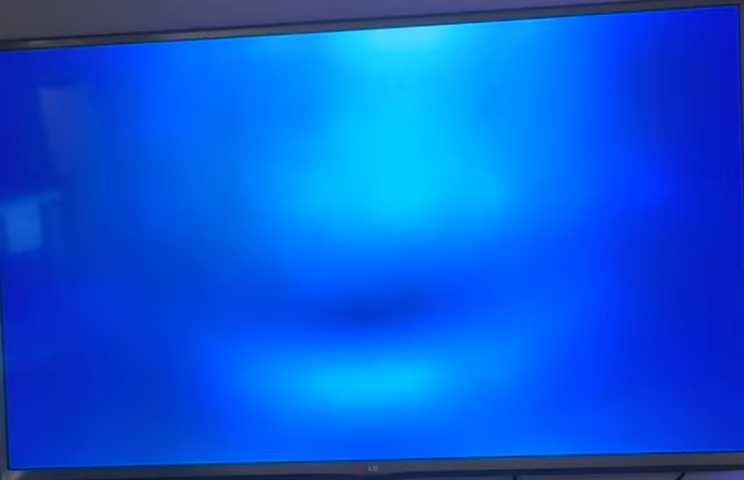
How to Fix SuperBox Blue Screen of Death at Loading or Missing Menu Without Factory Reset
If your SuperBox turns on but boots into a blue screen at loading or suddenly shows no menu at all, do not factory reset the box. Factory resetting a SuperBox can permanently delete apps like Blue TV and other preloaded services that you cannot get back.
This problem is usually caused by a failed launcher update, not a broken SuperBox. The steps below show exactly what buttons to press on the SuperBox remote and where to go on the screen to fix it safely.
Very Important Warning Before You Start
• Do not factory reset your SuperBox
• Do not uninstall IPTV apps
• Do not clear storage or system data
• Follow the steps in order
A factory reset is the fastest way to permanently lose Blue TV and other apps.
What You Will Need
• Your SuperBox remote control
• The TV powered on and connected to the SuperBox
• The SuperBox turned on, even if the menu is missing
These steps work even if you only see a blue screen or a blank home screen.
Step 1: Open the SuperBox Settings Menu Using the Remote
Even without the main menu, SuperBox still lets you access Settings.
• On the SuperBox remote, press the small shortcut button that brings up the side menu
• A small menu should appear on the left or right side of the screen
• Use the DOWN arrow on the remote to scroll
• Highlight Settings
• Press OK
You should now be inside the SuperBox Settings screen.
Step 2: Go to Apps and Show All Apps
Once inside Settings:
• Use the DOWN arrow to scroll to Apps
• Press OK
• Scroll down and select See all apps or Show all apps
• Press OK
This screen lists every app installed on the SuperBox, including system apps.
Step 3: Uninstall Launcher Updates on SuperBox
Now you will fix the launcher that controls the SuperBox menu.
• Scroll through the app list slowly using the DOWN arrow
• Look for Launcher, SuperBox Launcher, or Android TV Launcher
• Highlight the launcher app
• Press OK
• Select Uninstall updates
• Press OK to confirm
This removes the broken update that caused the blue screen or missing menu.
Step 4: Restart the SuperBox and Test
After uninstalling launcher updates:
• Press and hold the Power button on the SuperBox remote
• Select Power Off or Restart
• Press OK
Allow the SuperBox to fully reboot.
• If the menu comes back, you are done
• If the menu is still missing or the blue screen remains, continue
Step 5: Open the App Store from SuperBox Settings
You now need to update the launcher properly.
• Press the shortcut button on the remote again
• Go to Settings
• Select Apps
• Select See all apps
• Scroll down and open App Store
The App Store will open even if the main menu is missing.
Step 6: Update the Launcher App
Inside the App Store:
• Go to Installed apps or search for Launcher
• Highlight the launcher app
• You may notice the icon looks gray or inactive
• Press OK
• Select Update
Do not press any buttons while the update is installing.
When the update finishes, the launcher should become active again.
Step 7: Restart the SuperBox One More Time
After the launcher update completes:
• Press and hold the Power button on the remote
• Select Restart
• Press OK
Let the SuperBox fully load.
The blue screen should disappear and the menu should return.
Step 8: Put Your Apps Back on the SuperBox Home Screen
Once the menu is back:
• Use the remote to move to the home screen
• Add your apps back to the main row
• Re-pin Blue TV, VO, Maxi Flex, HD Stream, and any other apps you use
This does not reinstall apps. It only restores shortcuts.
Step 9: Confirm Everything Works
• Open Blue TV and confirm it loads
• Open a few other apps
• Make sure the menu responds normally
If everything opens correctly, the fix is complete.
Why You Should Never Factory Reset a SuperBox for This Issue
• Factory reset permanently deletes IPTV apps
• Blue TV and other services cannot be recovered
• Resetting usually does not fix launcher problems
• You will lose all shortcuts and settings
This problem is almost always a launcher update issue.
Final Notes for SuperBox Users
The SuperBox blue screen of death at loading or missing menu problem looks serious, but it is usually easy to fix if you follow the steps carefully. As long as you avoid factory resetting the box, your apps and subscriptions remain safe. If this issue happens again in the future, repeat these same steps. In most cases, uninstalling the launcher update and reinstalling it correctly restores the SuperBox menu completely.
Stay calm, follow the remote steps exactly, and your SuperBox will be back up and running without losing anything.
I did do factory reset. On s6pro
There was instruction on HOW to do it in the set up sheet. If it should never be done then why instruct how to do it.
I have no App Store so I can’t get Blue Tv
What can I do. K
Getting an google error message harmful app blocked?
Awesome response se and steps. Thanks for sharing.
I have a S6Max Superbox. Smart Media Player 6K. I kept getting a blue screen and no main menu when turn off and back on. I re-set and get the main menu back till I turn off again. They say don’t do a factory re-set, cause you may lose Blue TV or IP/TV. Is this true on this model or can it just be re-loaded. I just had this a couple of months
THANK YOU SO MUCH!!! Your instructions were so smooth and easy… I saved your page for future issue!! :o)
You are the king! I was having a bad night and this fixed it in 5 minutes. Idiot proof!
Only difference was mine used “LauncherX”. Thank you ao much!
Thank you so much!!!!!!!!!