How to Fix Inverted Colors on iPad (5 Easy Methods)
If your iPad screen suddenly looks like a photo negative — white backgrounds turned black, colors reversed — you’ve likely triggered an accessibility feature called Invert Colors. It’s easy to enable by accident and just as easy to turn off. Here are five ways to restore your iPad’s normal display.
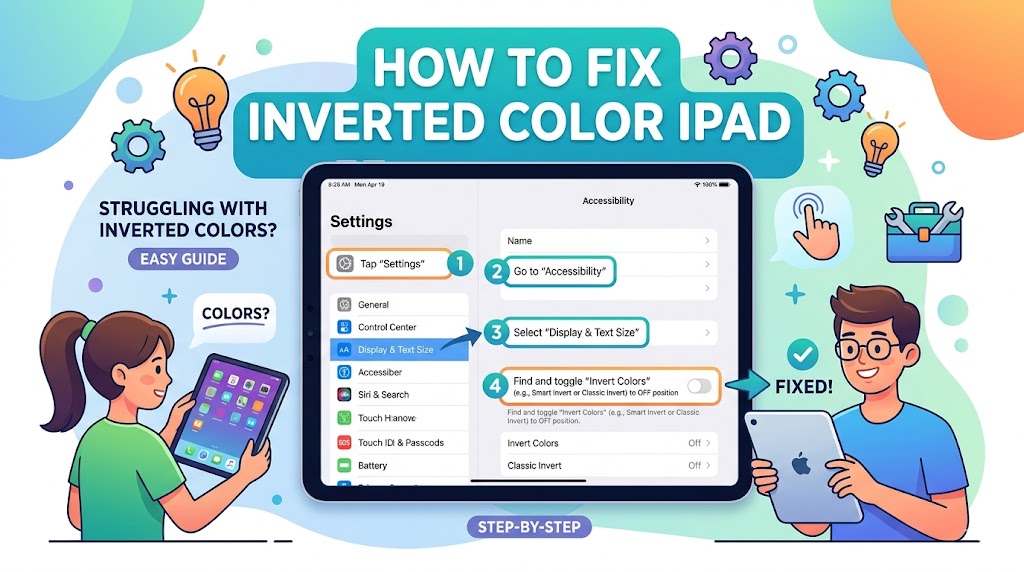
1. Turn Off Invert Colors in Settings
This is the most reliable fix and works on every iPad model.
- Open the Settings app from your home screen.
- Tap Accessibility in the left sidebar.
- Under the Vision section, tap Display & Text Size.
- Check both Smart Invert and Classic Invert. If either toggle is green (enabled), tap it to turn it off.
- Exit Settings. Your display colors should return to normal immediately.
Smart Invert reverses colors while preserving images and media. Classic Invert reverses everything on screen. Make sure both are disabled.
2. Triple-Click the Home Button
If your iPad has a Home button, this shortcut toggles accessibility features instantly.
- Press the Home button three times quickly.
- If Invert Colors is set as your accessibility shortcut, it will toggle off immediately.
- If a menu appears, tap Smart Invert or Classic Invert to disable it.
This shortcut only works if you’ve previously assigned Invert Colors as an Accessibility Shortcut in Settings > Accessibility > Accessibility Shortcut.
3. Triple-Click the Side Button (iPad Pro and Newer)
iPads without a Home button use the top/side button for accessibility shortcuts instead.
- Locate the top button (also called the side button) on your iPad.
- Press it three times quickly.
- Select Smart Invert or Classic Invert from the shortcut menu to toggle it off.
4. Use Control Center
If you’ve added accessibility shortcuts to Control Center, you can disable inverted colors from there.
- Swipe down from the top-right corner of your iPad screen to open Control Center.
- Look for an Accessibility Shortcuts icon and tap it.
- Tap Smart Invert or Classic Invert to turn it off.
If you don’t see the option, you can add it by going to Settings > Control Center and adding Accessibility Shortcuts to your included controls.
5. Ask Siri
The fastest method — just use a voice command.
- Activate Siri by saying “Hey Siri” or by pressing and holding the Home or Side button.
- Say “Turn off Smart Invert” or “Turn off Classic Invert.”
- Siri will disable the feature immediately.
This works even if you can barely see the screen due to inverted colors, making it the best option when the display is hard to navigate.