How To Fix CoD Modern Warfare Install Suspended Error | PS4
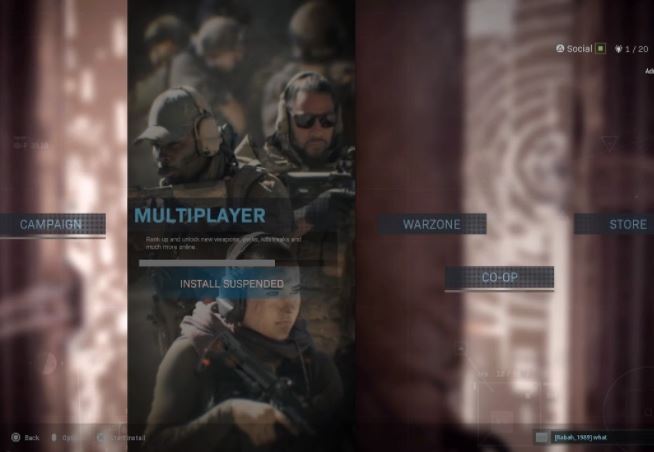
Are you getting install suspended error when playing CoD Modern Warfare? Worry not as this issue is easy to fix. The best thing that you can do is to ensure that you install all the different parts or packs before playing again.
If you’ve already installed the full parts of the game but the error persists, the cause may be entirely something else. In this article, we’ll show you the possible solutions that you can try.
What happens when you get CoD Modern Warfare “Install Suspended” error?
Many PS4 users have been reporting that they’re getting “install suspended” error when installing Call of Duty Modern Warfare. This issue appears unique to the PS4 console as no similar issue has been detected for PC or Xbox versions of the game.
The error appears when trying to load Modern Warfare, or when trying to install a DLC.
In some cases, the install suspended error was also reported in the middle of a campaign, special ops mode, or multiplayer.
Causes of Install Suspended error on CoD Modern Warfare
The main reason for the install suspended error appears to be running the game while other game packs are incomplete. Call of Duty Modern Warfare is packaged in multiple parts and playing the game while there’s a missing pack or part can trigger the issue.
Install suspended error does not mean that your PS4 is broken or the game files are damaged. It simply means that you are trying to play a part of the game that is not installed yet.
A few users continue to experience install suspended error even after having completed the installation of the packs though. In this case, the cause may be due to corrupted game files. You may need to re-install the game to fix the error.
Solutions CoD Modern Warfare Install Suspended Error
Suggested readings:
- How To Fix Call Of Duty Warzone Crashes On Xbox One
- How To Fix Call Of Duty Warzone Won’t Update | PS4 Or Xbox One
- How To Fix Call Of Duty Warzone Error 8192 | PC, Xbox, PS4
- How To Fix Call Of Duty Warzone Dev Error 6036 | PC
Visit our TheDroidGuy Youtube Channel for more troubleshooting videos.