Android Wi‑Fi Connected but No Internet: Fix Captive Portals, DNS, and Router Conflicts
When your Android phone says it’s connected to Wi‑Fi but nothing loads, it’s usually not “mystical.” In most cases, your phone is connected to the router, but something prevents it from reaching the internet (or completing a “sign-in” step).
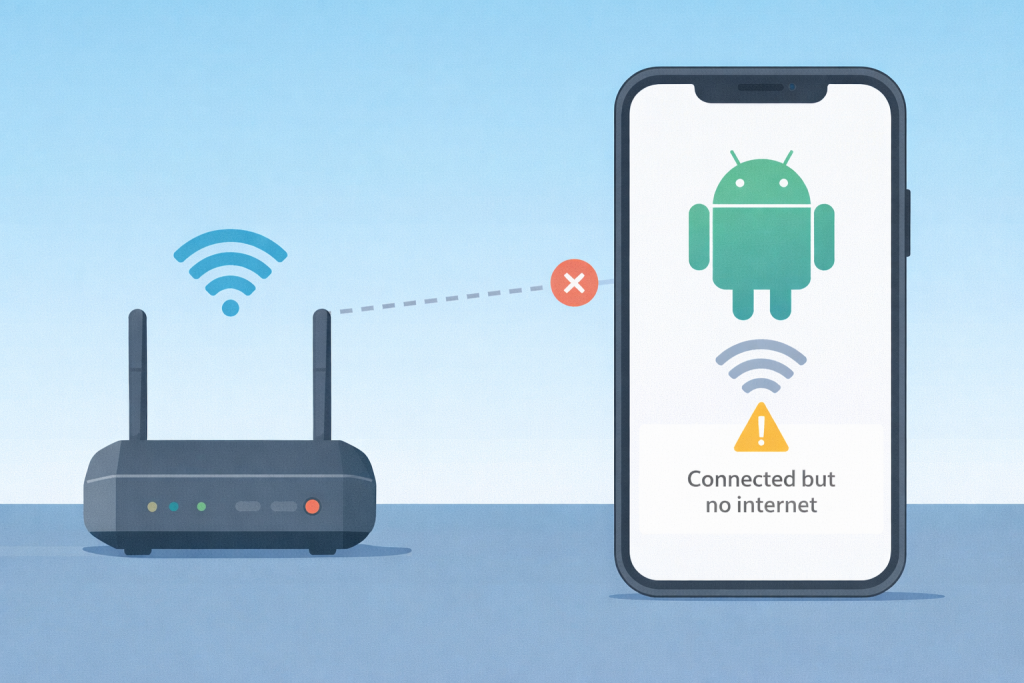
The biggest culprits are:
- Captive portals (hotel/airport/office Wi‑Fi that requires login) that don’t pop up properly
- DNS problems (the internet may work, but sites won’t resolve)
- Router isolation or network segmentation (guest mode, AP isolation, band steering quirks)
- Private DNS / VPN settings that block or misroute traffic
- IP conflicts or “stuck” network state after an update
This guide starts with fast checks you can do in 2 minutes, then walks you through a safe diagnosis flow so you don’t waste time randomly toggling settings. You’ll also see “router-side” fixes (for when the problem isn’t your phone) and a prevention checklist. Menu names vary slightly by phone brand and Android version, but the underlying steps are the same.
Before you start: If you’re on public Wi‑Fi, avoid entering passwords or sensitive info until you confirm you’re on the correct network. If you’ll try a Network settings reset later, know it may remove saved Wi‑Fi networks and Bluetooth pairings.
Fast checks (2 minutes)
1) Confirm it’s not just one app
- Try one browser (Chrome or your default) and load any well-known site.
- Try one app that needs internet (YouTube, Maps, or Play Store).
- If only one app fails, the issue may be app permissions, background restrictions, or app cache—not Wi‑Fi.
2) Toggle airplane mode (the “clean reconnect”)
- Turn Airplane mode ON.
- Wait 10 seconds.
- Turn it OFF.
- Reconnect to the Wi‑Fi network.
If this fixes it, you likely had a temporary routing/DHCP hiccup.
3) Check if mobile data works
Turn Wi‑Fi OFF and try the same site/app on mobile data. If mobile data works, your phone is fine and the problem is Wi‑Fi network/router/login/DNS-related.
Decision tree: identify the root cause
Start
 ├─ Does mobile data work?
 │    ├─ No → phone-wide issue (system, SIM, APN, outage). Troubleshoot cellular.
 │    └─ Yes → Wi‑Fi/network issue.
 ├─ Is this public Wi‑Fi (hotel/airport/office)?
 │    ├─ Yes → likely captive portal/login issue.
 │    └─ No → home Wi‑Fi or trusted network.
 ├─ Do some sites open but others fail?
 │    ├─ Yes → likely DNS/Private DNS/VPN.
 │    └─ No → likely router/DHCP/isolation or Wi‑Fi state corruption.
Fix captive portal issues (public Wi‑Fi)
Force the sign-in page to appear
- Open a browser and try to load a non-HTTPS address (example:
http://neverssl.com). - If the Wi‑Fi requires sign-in, you should see a captive portal page.
- If it still doesn’t show, turn Wi‑Fi OFF/ON and try again.
Disable VPN temporarily (if you use one)
Some VPN configurations block captive portal redirect behavior. Disable VPN, complete login, then re-enable VPN. If you’re on a work-managed device, VPN may be enforced—don’t bypass company policy.
Fix DNS and Private DNS issues
Check Private DNS
Private DNS can break browsing if the provider hostname is wrong or blocked on a network.
- Go to Settings → Network & internet → Private DNS (wording varies).
- Set it to Automatic or Off temporarily.
- Reconnect to Wi‑Fi and test.
Switch Wi‑Fi DNS to test (safe, reversible)
If pages fail to resolve but the network “connects,” changing DNS is a quick test.
- Go to your Wi‑Fi network details (tap the connected network).
- Find IP settings / Advanced.
- Change DNS to a public resolver (example: 1.1.1.1 and 8.8.8.8) for testing.
- If it works, either keep the DNS or revert once your router DNS is fixed.
Note: DNS changes can affect content filtering or parental controls in some households.
Fix router-side conflicts (home Wi‑Fi)
Test the same Wi‑Fi on another device
If other devices also show “connected but no internet,” the router or ISP is the likely problem.
Reboot in the correct order
- Turn off your phone’s Wi‑Fi (optional).
- Unplug your modem (and router if separate) for 60 seconds.
- Plug modem back in; wait until it fully reconnects.
- Plug router back in; wait 2–5 minutes.
- Reconnect your phone to Wi‑Fi and test.
Check guest network / AP isolation
If you’re on a guest network, some routers restrict internet access until a quota/login is completed. Also check for “AP isolation” settings that can cause odd behavior. If you’re not sure, temporarily connect to the main network for testing.
Band steering and 2.4GHz vs 5GHz pitfalls
Some routers merge 2.4GHz and 5GHz under one name (SSID) and move devices between bands. If you frequently get “connected no internet,” try splitting SSIDs temporarily and test stability.
Fix Android-side network state corruption
Forget the network and reconnect
- Tap the Wi‑Fi network name → Forget.
- Reconnect and re-enter the password.
Reset network settings (last resort)
Warning: This can remove saved Wi‑Fi networks and Bluetooth pairings.
- Go to Settings → System → Reset options (varies by OEM).
- Select Reset Wi‑Fi, mobile & Bluetooth.
- Restart the phone and reconnect.
Optional: safe ADB diagnostics (read-only)
Only use these if you’re comfortable with ADB. They are intended to help you capture diagnostics for your own troubleshooting—not to change system settings.
adb devices
adb shell dumpsys connectivity
adb shell ping -c 3 8.8.8.8
FAQ
Why does my phone say “connected” if there’s no internet?
Wi‑Fi “connected” usually means your phone has a link to the router/access point. Internet access still depends on DNS, routing, authentication, or ISP connectivity.
Is changing DNS safe?
For most users, yes—DNS switching is reversible and a helpful diagnostic. In managed networks, DNS may be enforced by policy.
Should I factory reset?
Almost never for this issue. Try network reset and router isolation first. Factory resets are disruptive and rarely the true fix.
Conclusion
“Connected, no internet” is typically a login (captive portal), DNS/Private DNS/VPN conflict, or router/ISP issue. Use the decision tree to isolate phone vs router, try the safe fixes first, and only reset network settings if the simpler steps fail. If the issue happens across multiple devices, focus on the router and ISP before changing your phone.